
As organizations embrace the transition to passwordless authentication, FIDO2 security keys have emerged as a robust, user-friendly solution. These keys not only enhance security but also streamline the login experience for end-users. This guide explores how to configure FIDO2 security keys as the default login option for Windows devices, utilizing Microsoft Intune to simplify deployment and management.
Why Choose FIDO2 Security Keys?
FIDO2 security keys are built on open standards for secure, passwordless authentication. They provide strong protection against phishing and other cyber threats, while offering a simple login experience.
- Key Benefits:
- Eliminates the need for passwords.
- Enhances user convenience with biometric or physical touch authentication.
- Ensures secure access to shared or multi-user devices.
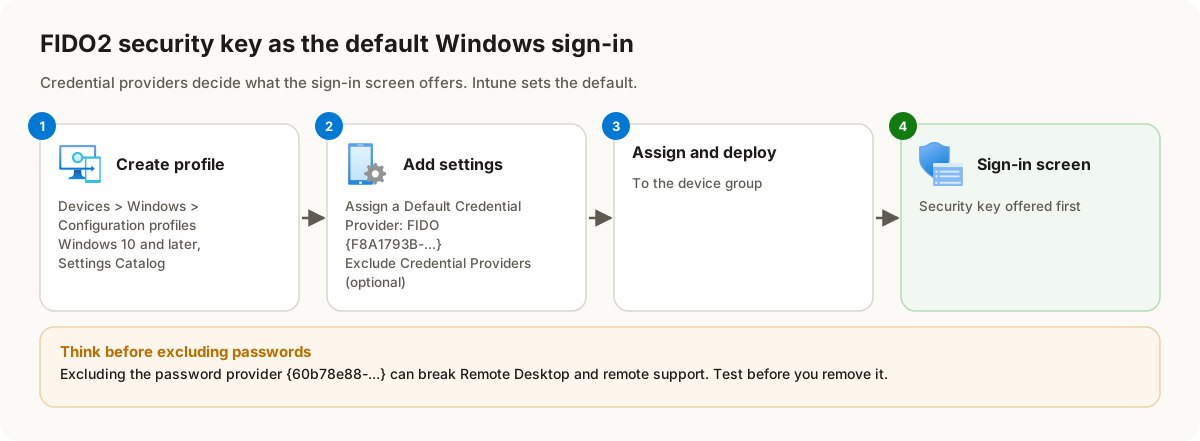
However, implementing them as the sole login option requires careful consideration. For example, removing password-based login could impact scenarios like Remote Desktop Protocol (RDP) or remote support. Therefore, FIDO2 keys are particularly well-suited for environments like kiosks or shared workstations, where simplicity and security are paramount.
Credential Providers: An Overview
Credential providers control the authentication methods presented on the Windows login screen. Each provider is identified by a unique GUID (Globally Unique Identifier), which you can configure to enable or exclude specific login options.
To find registered credential providers and their GUIDs, navigate to the Windows Registry:
HKEY_LOCAL_MACHINE\SOFTWARE\Microsoft\Windows\CurrentVersion\Authentication\Credential Providers
Common Credential Providers and GUIDs:
- PasswordProvider:
{60b78e88-ead8-445c-9cfd-0b87f74ea6cd} - FIDO Credential Provider:
{F8A1793B-7873-4046-B2A7-1F318747F427} - Smartcard Credential Provider:
{8FD7E19C-3BF7-489B-A72C-846AB3678C96}
Setting Up FIDO2 Security Keys with Microsoft Intune
Step 1: Access the Intune Portal
- Sign in to Microsoft Intune.
- Navigate to:
Devices > Windows > Configuration Profiles > Create Profile.
Step 2: Configure the Profile
- Select:
- Platform: Windows 10 and later
- Profile Type: Settings Catalog
- Click Create and provide:
- Name: (e.g., “FIDO2 Default Credential Profile”).
- Description: (Optional but recommended for clarity).
- Proceed to Next and open the Settings Catalog.
Step 3: Add the Required Settings
- Search for and add the following settings:
- Assign a Default Credential Provider
- Exclude Credential Providers (optional).
- Configure the settings as follows:
- Assign a Default Credential Provider:
- Enable this setting.
- Add the FIDO Credential Provider GUID:
{F8A1793B-7873-4046-B2A7-1F318747F427}.
- Exclude Credential Providers (Optional):
- Enable this setting.
- Add the GUIDs for credential providers you wish to exclude (e.g., PasswordProvider).
- If excluding multiple providers, separate GUIDs with commas.
- Assign a Default Credential Provider:
Step 4: Assign and Deploy
- Complete the profile creation process.
- Assign the profile to a security group.
Applying the Configuration
Once the policy is applied, restart the device to activate the changes. After reboot:
- Default Login Option: The login screen will prioritize FIDO2 keys as the default option, prompting for the key even if it isn’t inserted.
- Optional Exclusion: Excluded credential providers, such as passwords or smartcards, will no longer appear as login options.
A User-Friendly and Secure Login Experience
For shared or kiosk environments, FIDO2 keys simplify and secure the login process. Using a biometric FIDO2 key, users can authenticate by inserting the key and completing a simple fingerprint scan or touch.
This approach reduces friction for users while enhancing security, making it an excellent solution for multi-user devices.
Final Thoughts
Configuring FIDO2 security keys as the default login option is a strategic step towards a passwordless future. For shared devices, kiosks, or secure environments, this method provides unparalleled security and ease of use.
If your organization is exploring the possibilities of passwordless authentication, this is the perfect time to get started. Want to learn more about enabling a passwordless future? Check out our additional resources on modern authentication strategies.
Thanks for reading!