
Azure Monitor Agent (AMA) is how Azure collects logs and performance data from inside your virtual machines. It replaced the Log Analytics agent (also called MMA or OMS), which Microsoft retired on August 31, 2024.
The most common complaint is always the same: the extension says Provisioning succeeded, Azure Policy says Compliant, and yet the workspace is empty. This guide explains why that happens, step by step. First how the agent works, then three ways to deploy it, and finally the traps that catch almost everyone who uses a data collection rule or Azure Policy to roll it out.
In short
The agent alone collects nothing. It needs a data collection rule (DCR) that says what to collect, and an association (DCRA) that links that rule to the machine.
Azure Policy only acts on new or updated machines. Machines that already existed stay non-compliant until you run a remediation task.
"Installed" is not "working". Always confirm with the
Heartbeattable, not with the extension status or the compliance dashboard.
How Azure Monitor Agent works
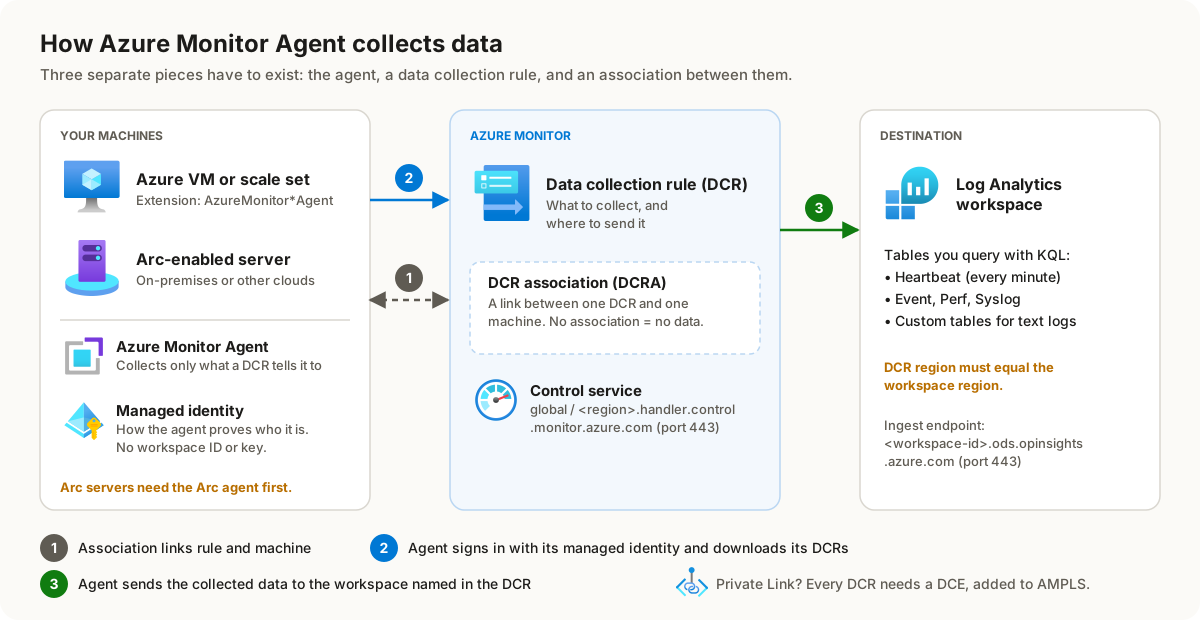
Think of it as three separate pieces that only work together:
The agent. A VM extension called
AzureMonitorWindowsAgentorAzureMonitorLinuxAgent. It runs on Azure VMs, scale sets and Azure Arc-enabled servers. A machine outside Azure needs the Azure Arc agent first.The data collection rule (DCR). An Azure resource that says what to collect (Windows events, performance counters, Syslog, text logs) and where to send it, usually a Log Analytics workspace.
The association (DCRA). A small child resource on the machine that points to a DCR. One machine can have several DCRs, and one DCR can serve many machines.
When all three exist, this is what happens:
The agent signs in with the machine's managed identity. There is no workspace ID or key any more.
It asks the Azure Monitor control service (
global.handler.control.monitor.azure.comand<region>.handler.control.monitor.azure.com) which DCRs are associated with it, and downloads them.It collects exactly what those DCRs describe, and sends the data over HTTPS (port 443) to the workspace named in each DCR.
It sends a
Heartbeatrecord every minute, which is how you know it's alive.
Before you start: the checklist
Supported operating system. Check the AMA supported operating systems list. This matters later, because the built-in policies skip images that aren't on it.
A managed identity on each machine. System-assigned works for a few machines. At scale, Microsoft recommends a user-assigned identity shared by many VMs, so Entra ID isn't creating and deleting an identity for every VM. Arc-enabled servers support system-assigned only.
A Log Analytics workspace, and at least Contributor rights on it to create the DCR.
Outbound network access on port 443 to
global.handler.control.monitor.azure.com,<vm-region>.handler.control.monitor.azure.comand<workspace-id>.ods.opinsights.azure.com. If you use NSGs or Azure Firewall, allow theAzureMonitorandAzureResourceManagerservice tags. Turn off HTTPS inspection for these endpoints.The legacy agent removed, or a plan to remove it. Running both agents sends the same data twice and doubles the bill.
Option 1: Install with a data collection rule (Azure portal)
This is the easiest way for a handful of machines. Creating a DCR installs the agent and creates the association for you.
In the Azure portal, open Monitor > Data Collection Rules > Create.
On Basics, give the rule a clear name, such as
dcr-windows-baseline-westeurope. Pick the same region as your Log Analytics workspace. A DCR can only send to workspaces in its own region.On Resources, select Add resources and pick your VMs or Arc servers. If you use a user-assigned identity, choose it here. Otherwise the portal turns on a system-assigned identity for each machine.
On Collect and deliver, add a data source, for example Windows Event Logs at Critical, Error and Warning, or a few performance counters. Set the destination to your workspace.
Select Review + create. Azure installs the agent where it's missing and creates one association per machine.
Wait about 5 minutes, then check the workspace (see "Verify it works" below).
Option 2: Install with Azure CLI (one machine, repeatable)
Use this when you want to script it or understand each piece. The example uses a user-assigned identity.
# 1. Create a user-assigned identity once, then give it to the VM
az identity create -g rg-monitoring -n id-ama-westeurope -l westeurope
az vm identity assign -g rg-app -n vm-app01 \
  --identities /subscriptions/<sub-id>/resourceGroups/rg-monitoring/providers/Microsoft.ManagedIdentity/userAssignedIdentities/id-ama-westeurope

# 2. Install the agent and tell it which identity to use
az vm extension set --name AzureMonitorWindowsAgent --publisher Microsoft.Azure.Monitor \
  --ids /subscriptions/<sub-id>/resourceGroups/rg-app/providers/Microsoft.Compute/virtualMachines/vm-app01 \
  --enable-auto-upgrade true \
  --settings '{"authentication":{"managedIdentity":{"identifier-name":"mi_res_id","identifier-value":"/subscriptions/<sub-id>/resourceGroups/rg-monitoring/providers/Microsoft.ManagedIdentity/userAssignedIdentities/id-ama-westeurope"}}}'

# 3. Associate the VM with an existing DCR - without this, nothing is collected
az monitor data-collection rule association create --name vm-app01-baseline \
  --rule-id /subscriptions/<sub-id>/resourceGroups/rg-monitoring/providers/Microsoft.Insights/dataCollectionRules/dcr-windows-baseline-westeurope \
  --resource /subscriptions/<sub-id>/resourceGroups/rg-app/providers/Microsoft.Compute/virtualMachines/vm-app01
For Linux, use AzureMonitorLinuxAgent instead. Turning on automatic upgrade (--enable-auto-upgrade true) matters, because only agent versions released in the past year are supported.
Option 3: Deploy at scale with Azure Policy
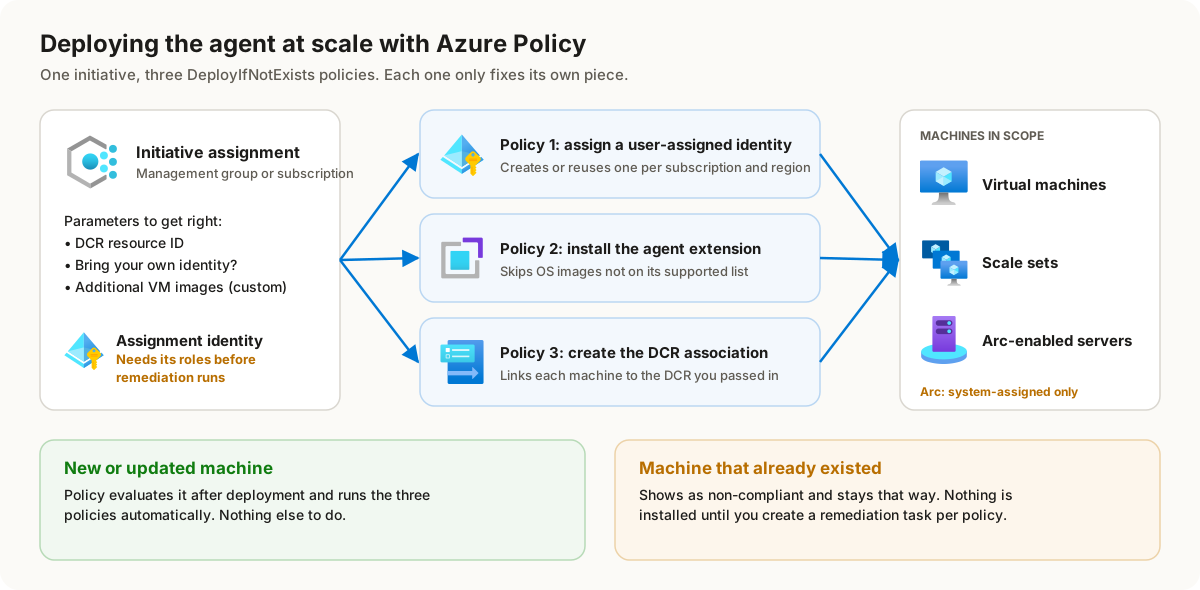
For a whole subscription or management group, use the built-in initiatives. In Policy > Definitions, filter on Type: Initiative and search for Azure Monitor Agent. There is one initiative for Windows and one for Linux, and each contains three policies: assign a user-assigned identity, install the agent, and create the DCR association.
Create the DCR first (Option 1 without adding resources is fine) and copy its resource ID from the JSON view.
Decide on the identity. Either let the policy create one called
built-in-identityper subscription and region, in the resource groupbuilt-in-identity-rg, or set Bring Your Own User-Assigned Identity to true and name your own.Assign the initiative at the management group or subscription. Paste the DCR resource ID. If you use custom or golden images, add them to Additional Virtual Machine Images (see trap 4).
Give the assignment its own managed identity and let the portal grant its roles. If you assign at resource group scope, grant those roles yourself before remediating.
Create a remediation task for each policy in the initiative. This is what fixes the machines that already exist.
Verify with data, not with compliance. Run the Heartbeat query below.
A remediation task from the CLI looks like this. ReEvaluateCompliance rescans first, so freshly created machines are included:
az policy remediation create --name ama-install-existing \
  --policy-assignment /subscriptions/<sub-id>/providers/Microsoft.Authorization/policyAssignments/<assignment-name> \
  --definition-reference-id <reference-id-of-the-install-policy> \
  --resource-discovery-mode ReEvaluateCompliance
Verify it works
Open your Log Analytics workspace, select Logs, and run:
Heartbeat
| where Category == "Azure Monitor Agent"
| where TimeGenerated > ago(15m)
| summarize LastSeen = max(TimeGenerated) by Computer, OSType
| order by LastSeen desc
Every machine should appear with a recent LastSeen. To find machines that stopped reporting, change ago(15m) to ago(1d) and add | where LastSeen < ago(15m). Then check the table for the data you configured: Event for Windows events, Perf for counters, Syslog for Linux.
Why DCR and Policy deployments go wrong
These are the problems behind most "the agent is installed but nothing arrives" tickets. Each one has the symptom, the reason, and the fix.
1. The agent is installed, but no data arrives
Why: installing the extension doesn't create a DCR or an association. The agent is running, but it has nothing to do.
Fix: list the associations on the machine. An empty result is your answer.
az monitor data-collection rule association list --resource <vm-resource-id> -o table2. Policy says the assignment worked, but old machines never get the agent
Why: DeployIfNotExists policies run when a machine is created or updated. Existing machines are only reported as non-compliant. On top of that, a remediation task only fixes machines that were non-compliant when the task started.
Fix: create a remediation task for each of the three policies, in order: identity, then agent, then association. Rerun them after big migrations.
3. Remediation fails with deployment errors
Why: the assignment's own managed identity (not the one the agent uses) lacks the roles it needs. Microsoft calls this out for assignments at resource group scope: there, the roles aren't granted for you and must be added by hand before assignment or remediation.
Fix: grant the roles listed in the policy definition to the assignment identity, then rerun remediation. The deployment error in the remediation task names the missing permission.
4. Machines built from custom images are silently skipped
Why: the built-in policies only target the Windows and Linux images Microsoft supports. A golden image from your own gallery doesn't match, so the policy never even evaluates the machine.
Fix: add your image names to the Additional Virtual Machine Images parameter of the assignment.
5. Two identity models on the same machines
Why: when you add machines to a DCR in the portal, the default is to switch on a system-assigned identity. The policy initiative uses a user-assigned one. Mix the two and you get extra identities in Entra ID, and agents that may sign in with a different identity than you expect.
Fix: pick one model, ideally user-assigned at scale. When you add resources to a DCR in the portal, select the user-assigned identity explicitly.
6. Identities go missing after parallel deployments
Why: Microsoft documents a race condition. If the identity policy and another deployment change a VM's identities at the same moment, the VM may not end up with all the identities it should have.
Fix: avoid running remediation while other pipelines are changing the same VMs. Check the identities on any failed machine, then rerun.
7. The DCR can't see the workspace
Why: a DCR must be in the same region as its destination workspace.
Fix: create one DCR per workspace region and associate machines with the right one. Machines can be in any region.
8. The bill doubles
Why: the same data is collected twice. Common causes are two DCRs with the same data source on one machine, the legacy agent still running next to AMA, or a DCR collecting security events on machines where Microsoft Sentinel already collects them.
Fix: list all DCRs per machine, keep each data source in one rule, and uninstall the legacy agent once AMA is confirmed working.
9. Private Link or a firewall blocks the agent
Why: HTTPS inspection or a missing endpoint breaks the agent's TLS connection. With Azure Monitor Private Link Scope (AMPLS), every DCR needs a data collection endpoint (DCE), and the DCEs must be added to the AMPLS. The configuration endpoint must be in the same region as the machines.
Fix: disable HTTPS inspection for the Azure Monitor endpoints. With Private Link, create a DCE in each region where you have agents and add them all to the AMPLS.
10. Editing a DCR in the portal removes your changes
Why: if you edited the DCR's JSON directly, for example to add a transformation the portal doesn't support, saving it again from the portal overwrites those changes.
Fix: once a DCR has JSON-only features, manage it only as code (Bicep, Terraform or JSON), never from the portal editor.
Troubleshooting order
Is the extension there?
az vm extension list -g <rg> --vm-name <vm> -o table. Look for Provisioning succeeded.Is there an association?
az monitor data-collection rule association list --resource <vm-id>Does the machine have the identity the agent expects? Check Identity on the VM.
Can it reach the endpoints? Test port 443 to the handler and ODS endpoints from the machine. Check for HTTPS inspection.
Is there a Heartbeat? Run the query above. If you see a heartbeat but no events, the DCR's data source or filter is the problem, not the agent.
Wrap-up
Azure Monitor Agent is simple once you stop thinking of it as "an agent" and start thinking of it as three resources: the extension, the rule and the association. Policy gives you all three at scale, but only for machines it touches, only with an assignment identity that has its roles, and only on images it recognises. Remediate, then verify with the Heartbeat table every time.